UMass Chan News Article
Tuesday, January 31, 2023
|
This blog post will share some of the more complex editing for the News Article pages.
Adding Related Articles at the bottom of the article:
- you can edit this area in properties view or display view
Display View - bottom of the article
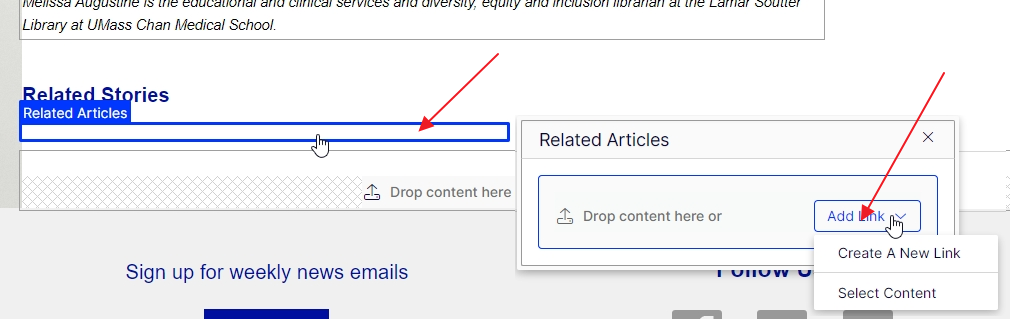
Properties View - Related Stories tab

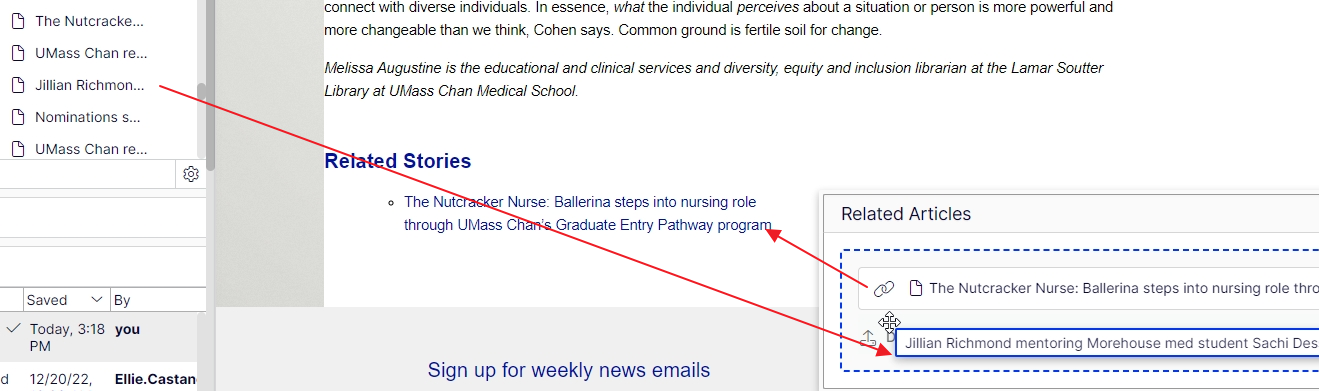
- In Properties view or Display View, you can drag and drop pages from the content tree
- In Display view, you will see the link display immediately (unstyled while editing, click preview at the top of the editor to see it styled)
- The easiest way to add links here is to navigate to the article (or if you already have the URL when the article was submitted), copy the url
- Click "Create a New Link" in the related stories property (as shown above)
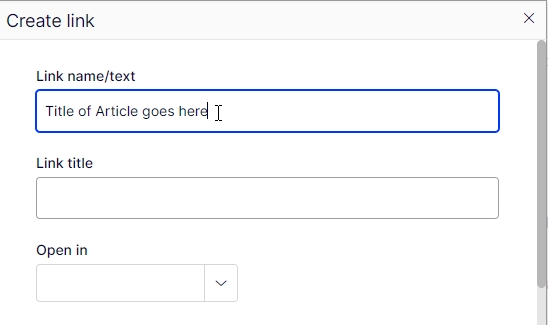
- For the Link Name/Text, add the title of the article
- Leave Link title and Open in blank
- Set to Open in a new tab if the link is going to a web page that is external to umassmed.edu/news
- if you set Open in a New tab, make sure to add to the title "link will open in a new tab"
- Click on "external link" and paste the url into this field
- click ok
Adding a pull quote in the main text
- place your cursor at the beginning of a paragraph (or where ever you would like to place the quote)
- On the WYSIWYG menu, click on the Insert menu item, and then Template on the dropdown
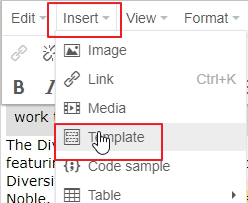
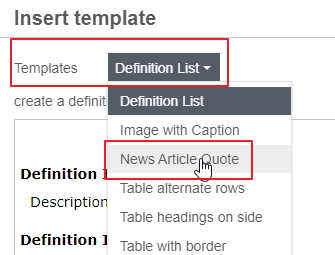
- Select the News Article Quote option from the dropdown
- click ok
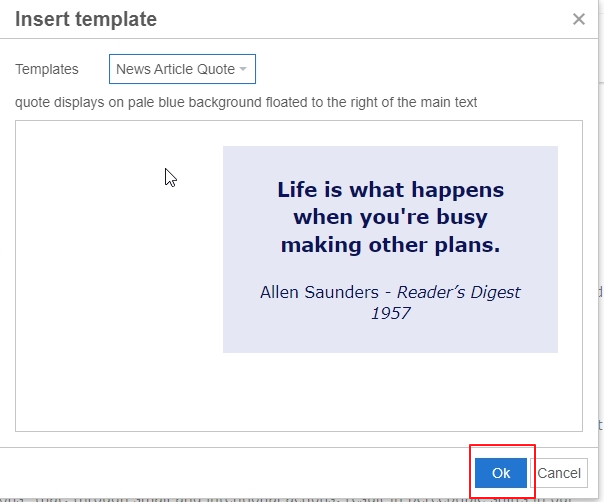
- the quote should now appear in the article content and you can edit the text within the pull quote
You have the ability to enlarge the text or change the width
- select all the text in the pull quote, you will notice the Quote icon is highlighted
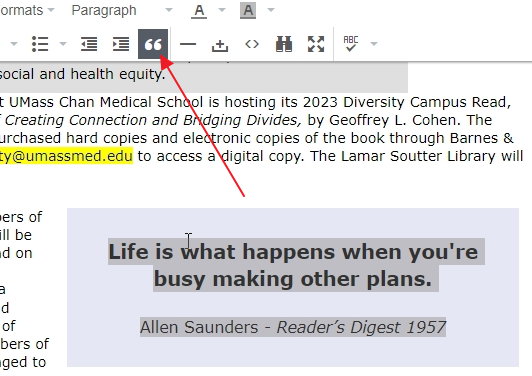
- To enlarge the font, click on the "Formats" menu on the WYSIWYG menu (2nd line of items)
- select Font Sizing and choose a size
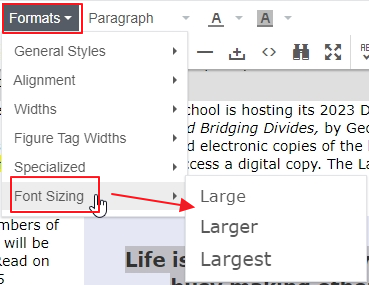
- To set a different width, click on Formats menu item again
- click on widths and choose a width
- note: if you change your mind and want to select another option or remove what you chose, you must deselect the option(s)
- follow the same steps and click on same selection to deselect
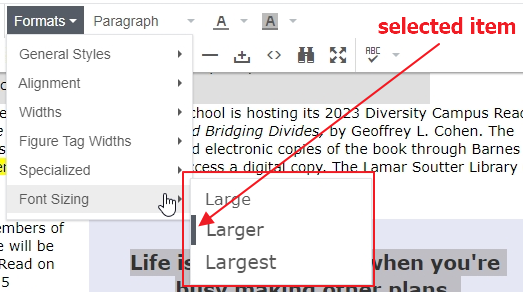
- selected items will display with a vertical gray bar at the beginning of the item
example showing selected item, click on it to deselect (this will remove the class name that particular class name)
Adding an image with caption
- place your cursor at the beginning of a paragraph (or where ever you would like to place the quote)
- On the WYSIWYG menu, click on the Insert menu item, and then Template on the dropdown
- Select "Image with Caption"
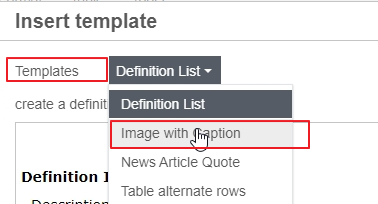
- click ok
- default image with caption appear in article content
- you can edit the image by selecting it and clicking on the image icon to change it
- make sure to add/update the ALT text as appropriate
- you edit the caption
You can set the alignment and width of the image with caption
- To align the image/caption, select the caption and image together
- click on the "Formats" menu on the WYSIWYG menu (2nd line of items)
- select "Figure Tag Widths" and choose a percentage
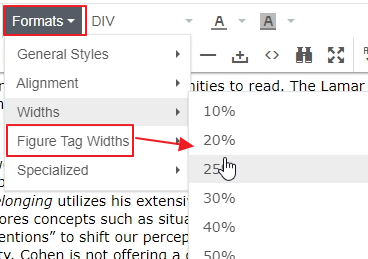
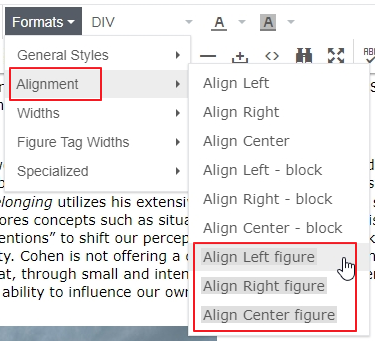
- You can also align the image/caption, click on the "Formats" menu
- choose "Alignment" and select an option (any of the 3 at the bottom)