

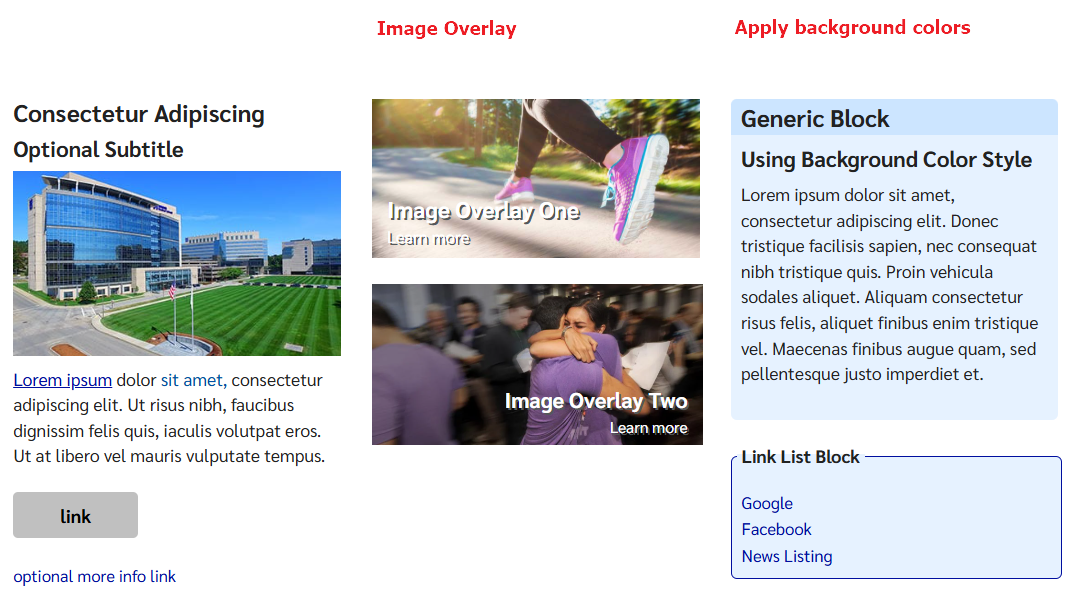
Adding background colors to blocks
- Edit the block
- Click on the Settings tab
- Copy and paste the appropriate text, from below
- add to the property field: “CSS class name(s)..”
|
Background colored box with colored headers |
||
|---|---|---|
|
CSS class name to copy |
With heading |
Without heading |
|
box box-bg blue |
|
|
|
box box-bg blue dark |
|
|
|
box box-bg gray |
|
|
|
box box-bg gray dark |
|
|
Overlay Text on top of Image
- Create a new block: Generic Block
- Click on the Content Tab
- [optional] Add a Title if you want one
- Select your image
- to set the alignment of your text over the image
- set the property Image Alignment to: left, right or center
- leaving set to none will pick up default of “left”
- [optional] add a Description
- [optional] add Link Text and Link
- Click on the settings tab
- Copy and paste the appropriate text, from below, into the property “CSS class name(s)..”
|
Setting the text on the image overlay |
|
|---|---|
|
CSS class name to copy |
How the text appears |
|
On the Settings Tab
On the Content Tab
|
|
|
On the Settings Tab
On the Content Tab
|
|
|
On the Settings Tab
On the Content Tab
|
|
|
On the Settings Tab
On the Content Tab
|
|
Display with a border and background color
- Edit the block
- Click on the Settings tab
- Copy and paste the appropriate text, from below
- add to the property field: “CSS class name(s)..”
|
Background colored box with border |
||
|---|---|---|
|
CSS class name to copy |
With heading |
Without heading |
|
box box-border head-line blue |
|
|
|
box box-border head-line gray |
|
|