
Multi-Factor Authentication
First Time Setup
When first logging in and setting up a UMass Chan Medical School account, after setting up the new password you will be prompted with a message "More information required" which will walk you through setting up the Multi-Factor Authentication on your account.
If you do not have the email and initial password to set up your account reach out to your manager / supervisor or whoever you have been working with to get an account and they can forward the initial password instructions
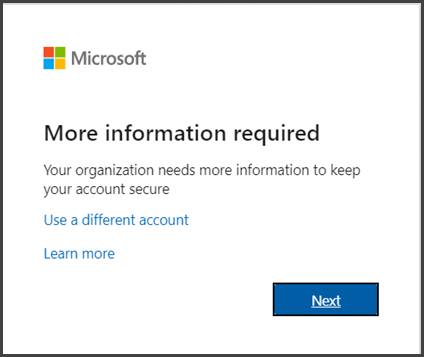
Choose Next.
The default authentication method is to use the free Microsoft Authenticator app. If you have it installed on your mobile device, select Next and follow the prompts to add this account. If you don't have it installed there is a link provided to download it. Download Microsoft Authenticator App
If you would rather use SMS messages sent to your phone instead, select I want to set up a different method. Microsoft 365 will ask for your mobile number, then send you an SMS message containing a 6-digit code to verify your device.
Tip: For a faster, and more secure, experience we recommend using an authenticator app rather than SMS verification.
Once you complete the instructions to specify your additional verification method, the next time you sign in to Microsoft 365, you'll be prompted to provide the additional verification information or action, such as typing the verification code provided by your authenticator app or sent to you by text message.
Note: If you replace the device that you have the Microsoft Authenticator app installed on and do not have a backup number or device set up you will need to reach out to the Help Desk at (508) 856-8643, UMassChanHelpDesk@umassmed.edu, or S1-112 to get assistance
Configuring Multi-Factor Authentication
To set up a new method such as Microsoft Authenticator on another device or setting up a phone number as a backup to the app go to https://mysignins.microsoft.com/security-info if routed to a personal account or a non UMass Chan account right click this link and open in private/incognito window.
Note: If you replace the device that you have the Microsoft Authenticator app installed on and do not have a backup number or device set up you will need to reach out to the Help Desk at (508) 856-8643, UMassChanHelpDesk@umassmed.edu, or S1-112 to get assistance
Adding a Phone Number
- Click Add sign-in method then select Phone, Alternate Phone or Office Phone.
- Text message authentication only available for Phone, call authentication available for all three. Enter the Phone Number and click next
- Once the number confirmed, you will be prompted to test authenticate to ensure the system is working, answer the call or enter the code from the text to verify the system is working
- The text message is sent from Microsoft as a SMS text message through the phone's service plan
- The call is made from Microsoft through the phone number's service plan
- Call or text charges may apply - phone must have an active service plan
Adding Another Microsoft Authenticator Application
- Click Add sign-in method then select Authenticator App and click next until you see the QR Code
- Open the Authenticator app on your phone and press the plus button in the upper right corner of the app, choose Work or school account then Scan QR Code to scan the code on your computer from the previous step
- If you don't see the plus button, you might see buttons for Scan QR Code or Add Work or School Account
- Once the QR code is scanned click next on your computer, and you will be prompted to approve a notification on the app to ensure the system is working and press Done
- With the Authenticator App linked, click on Change next to Default sign in method and select Authenticator App - Notification
- We recommend also making sure you have a backup method on this page in the from of another mobile device you can get notifications from or a phone number to get a call or a text if you cannot access the notification from the app