

DNP and T.H. Chan School of Medicine Student Resources
This resource hub is designed to provide students like you with a myriad of resources, from study guides and tutorials to library access and student support services. With EPIC Resources at your fingertips, you'll have the tools you need to excel in your studies and make the most of your educational journey.
Inpatient Provider
| Find Patient |
Outpatient Provider
| Notes |
| Review the Chart |
| Schedule |
| Efficiency Tips |
Frequently Asked Questions
I am a first-year medical/GSN student. I can’t access EHRC because I don’t have a UMass Memorial network account created for me and I haven’t received any emails about it. What should I do to get access?
 UMass Chan IT - Academic Technology together with UMMS IS has automated the process of providing UMMH network accounts with Epic and EHRC access for all learners. Learners will receive their login credentials via email from IS Support Center <umassmemorial@service-now.com>.
If you are currently employed at UMass Memorial or were a previous employee at UMass Memorial at any point, their system automatically skips you during the account creation process. In this case, you will need to reach out to UMass Chan IT Help Desk at (508)-856-8643 or through email (UMassChanHelpdesk@umassmed.edu) to request assistance.
If you have never been employed at UMass Memorial, you can take the following steps:
- Check your personal email for a message from umassmemorial@service-now.com with subject line: “ACTION NEEDED: UMass Memorial Health Login Account Setup for <student name>”
- Call UMass Memorial Health IS Support Center at (508) 334-8800 or email them at umassmemorial@service-now.com to confirm if your account was created.
- If your account was not created, call UMass Chan IT Help Desk at (508) 856-8643 or through email (UMassChanHelpdesk@umassmed.edu) for assistance.
I seem to have lost access to my UMass Memorial network account. What should I do to regain my access?
Please keep in mind, in order to keep your UMass Memorial network account active, you need to log into your account at least once every 60 days.
If you haven’t logged into your account for 60 days, it will be disabled. Once deactivated, you have an additional 30 days to get it reactivated. Should your account become deactivated, contact the UMass Chan IT Help Desk to ask them to submit a request to UMass Memorial IS on your behalf or submit a ticket for ACCOUNT REACTIVATION here.
If you haven’t logged into your account for 90 days, it will be deleted. Deleted accounts can not be reactivated. You will need to be “rehired” into Workday and then a new account with required application(s) access needs to be requested. You can contact the UMass Chan IT Help Desk to ask for help.
| Days without Login | Account State | Notes |
| 0 - 60 | Active | Logging into FMD keeps account active; don’t need to open a specific application |
| 60 - 90 | Disabled | Account can be reactivated via Security Access Request (SAR) in IS Self-Service Porta |
| 90+ | Deleted | Account cannot be reactivated; student needs to be "rehired" into Workday and then a new account with required application(s) access needs to be requested |
I need to reset my password, how do I do that?
Option 1:
Call Clinical IS Support Center at (508) 334-8800, select option #1.
NOTE: For security purposes, Clinical IS requires that you change your password annually.
Option 2:
UMMH Information Services has implemented a self-service password reset tool. This tool allows users to reset their network passwords independently by clicking a button on the login screen and receiving a verification code via personal cell phone, personal email, or corporate cell phone. This more secure process is similar to how you might reset your password on other websites with self-service password reset functionality (i.e., personal banking, credit cards, retailers, etc.)
To use the password reset tool, you must add your personal email and/or personal cell phone number and personal cell phone carrier on the My Information Page of the IS Self-Service Portal in ServiceNow.
I have some issues with my remote access, what shall I do?
For remote access issues (Omnissa Horizon or RSA), please contact the Clinical IS Support Center at (508) 334-8800.
I have some questions about Epic functionality, what shall I do?
Call Clinical IS Support Center at (508) 334-8800, select option #2. You may also enter a support ticket online via the UMMH IS Self Service.
NOTE: You will need to enter your Clinical user username and password to gain access to the portal.
Can you describe the process of creating UMass Memorial network accounts for incoming students?
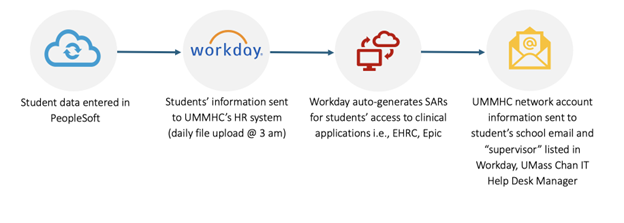
Here is a list of steps involved in creating UMass Memorial network accounts for incoming students.
- UMass Chan students’ information is sent from PeopleSoft to UMass Memorial Health Center (UMMHC) via an automated secure file at 3 am every day.
- UMMHC IS uploads UMass Chan students into Workday, their HR system, as contingent workers reporting to John “Jack” Cleary, Manager for the UMass Chan IT Help Desk.
- Workday autogenerates security access requests (SARs) in the Self-Service Portal to request access to Epic and any other clinical applications as needed.
- UMMHC IS Support Center umassmemorial@service-now.com sends students an email with subject line: ACTION NEEDED: UMass Memorial Health Login Account Setup for <student name> with their network user ID and instructions for setting up their password and the RSA app.
- UMass Chan students’ UMMHC Workday onboarding tasks:
- Review the Confidentiality/User Access Agreement
- Add emergency contacts
- Confirm or update contact and personal information
Note: This process applies to prospective visiting students applying for electives at UMass Chan.
How do I install RSA SECURID® Authenticator?
All UMass Memorial account holders are required to complete pre-hire documents in Workday. To access Workday, you must utilize the UMass Memorial multi-factor authentication tool-RSA Authenticator (SecurID).
Below is a job aid that provides instructions on installing and registering RSA Authenticator (SecurID) on your smartphone.